Showing posts with label How to Create a Website. Show all posts

Monday, April 13, 2020

How to Create a Website

There are only 3 easy and good ways to build a website.

Just three.

Make sure you get it right, switching this later could cost you months worth of revenue and time to switch. I’ve done a few of these site migrations, I dread them with every fiber of my being.

Before you jump straight into building your site, take a few minutes to make sure you’re using the right method to build it. If you get this decision right, everything else will be cake.

Do You Need Help With Website Design?

Get help with designing your website or blog today.

Get Started


By answering just two questions, you’ll know exactly how to build your site.

  1. Are you going to be selling physical products from your website?

There’s only one way to build ecommerce sites and that’s Shopify. More on that below. (We also have a very detailed, completely free guide on how to create an ecommerce website that will walk you through every single step of the process.)

  1. Are you SERIOUS about getting lots of traffic to your website?

I’ve spent my entire career in online marketing. Building sites, getting traffic, optimizing funnels. It’s what I do.

But…

A lot of sites don’t need tons of traffic. All the fancy traffic strategies are overkill.

For some businesses and projects, all you need is a basic website that gives relevant info for people looking to learn more about you.

Restaurant websites are a perfect example. They need to have the name, menu, hours, phone number, and the location. That’s it! No fancy SEO strategies, no lead funnels, no viral growth hacks. None of that stuff matters. A basic, informational site is more than enough for a restaurant.

If you fall into this category, you’re in luck. You can skip a ton of the extra stuff that I always have to do and get yourself a super easy site. There’s a bunch of site builders these days that can get you a brand new site that looks fantastic within minutes.

Now let’s say you do need a boatload of traffic. Then what?

Well, you’ll need to get your site built on WordPress. It’s still easy to set up on your own, you won’t need to code anything yourself. But it’s not quite as streamlined as the site builders. It does come with extra features that help you build traffic though. So it’s worth the effort in that case.

If you need traffic, you’re going to want the extra control from WordPress.

Here are your two options:

Let’s go through all the options in detail.

Creating an Ecommerce Website For Your Online Store

If you sell physical goods, you only have one option for creating your website: Shopify.
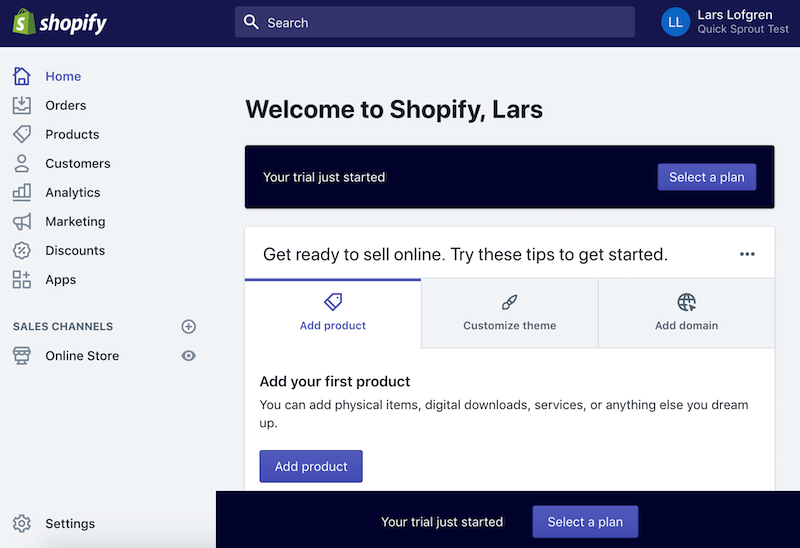
Shopify add first product online store backend 2

Yes, there are technically other options that you could consider. But Shopify is so good that there’s no point in choosing anything else.

When you build your website on Shopify, you get:

  • A super easy ecommerce site builder
  • The flexibility to change your site however you want
  • Built-in inventory and shipping management
  • Payment processing that only takes a few minutes to set up
  • A deep marketplace of apps to give you any extra functionality that you want

Get all the details from our in-depth review on Shopify.

There’s really no downside to going with Shopify. They’ve built a high quality product at a fair price. If I was building a website to sell physical goods, I would sign up for Shopify immediately. I wouldn’t think twice about it.

If you’re not selling physical goods, Shopify won’t make much sense. For other types of websites, there are easier, cheaper, and more valuable ways to build your site.

Also, I’ve met several people that have worked at Shopify over the years. They’ve all been amazing people. Shopify has not only built an incredible product, they’ve built an amazing company. That means the product will continue improving for years to come. Visit Shopify to try it for free.

WordPress Vs. Website Builders

Now you have a choice to make.

You can either use a website builder or build the site yourself using WordPress.

Website builders like Squarespace make things extremely easy. Simply go to their site, pick a domain that’s available, and use their software to put everything together. They walk you through every step.

Website builders are absolutely perfect for:

  • Restaurants
  • Local businesses
  • Freelancers
  • Hobby sites
  • Student groups
  • Community projects
  • “Resume” sites
  • Short term projects

Sites like these don’t need to get serious with traffic building strategies. They simply need a site that has a few pages when people want to know more about the business or project.

Website builders do have a downside. They don’t handle large sites and lack the advanced features you’d need for building large amounts of traffic. Most businesses don’t need this anyway so a basic website builder is more than enough. You’ll get more value out of the simplicity and won’t notice the lack of advanced features. You won’t need them anyway.

What about WordPress?

When does it make sense to go the more advanced route?

If you plan on building a large website or your business depends on lots of traffic visiting your site, use WordPress.

WordPress literally powers a third of the internet and for good reason. It has everything you want when getting serious about your website:

  • Easy setup so getting your site live is fast.
  • Ongoing dev maintenance from the company that maintains WordPress, this means less development maintenance and lower costs for you.
  • Complete flexibility and customizability. Over time, you can build your site however you like.
  • Easy enough that many people on your team will be able to make basic edits to your site with the help of a developer.
  • Great built-in SEO. Since many large sites depend on search engine traffic to some degree, they usually pick WordPress for the SEO features alone.
  • It’s completely open-source so you own your website and can do whatever you want with it.
  • WordPress itself is free. All you have to do is pay for web hosting.

So WordPress is free, has all the advanced features you need to build large amounts of traffic, and is completely customizable. That’s why it’s so popular.

But compared to website builders, WordPress is more complicated. You have to set up web hosting, get WordPress installed, then configure your site using WordPress and find the right theme.
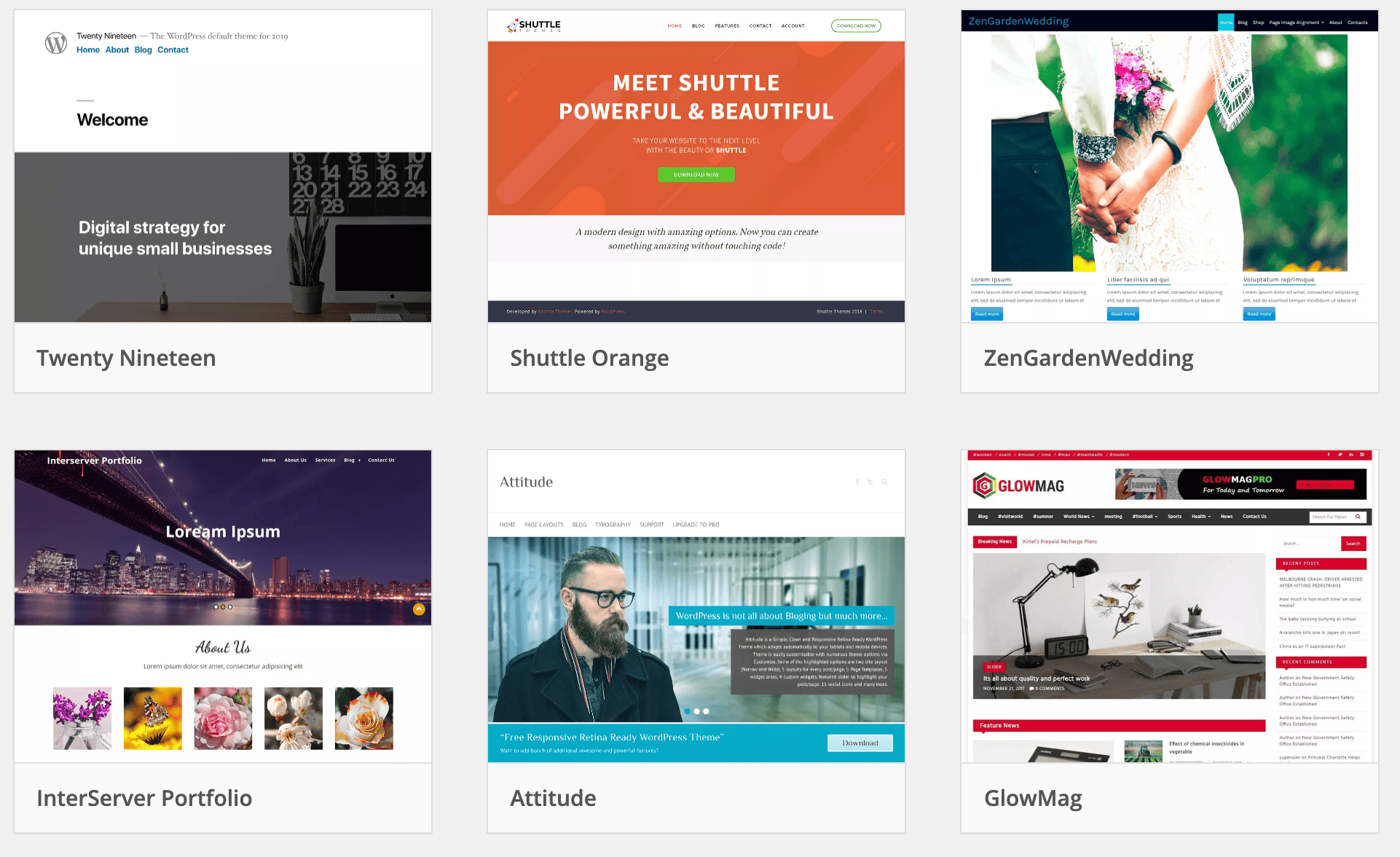
Wordpress Themes

Sometimes you can easily make the change that you want to your site. In other cases, you might need to edit your website’s code or have a developer help you.

It all comes down to the goals that you have for your business.

If you simply need a basic website that has info on your business, use a website builder since they’re so much easier to use.

If you’re building a large website, use WordPress since it’s completely customizable and has the advanced features that you need.

WordPress Vs. Other CMS Systems

The other day, I went to a brewery with a friend of mine. He had recently sold his media business which had millions of visitors per month. It had a great brand, a huge site, and tons of traffic.

At one point, he mentioned “You know, we built our whole site on Drupal.”

I almost spit my beer all over him. “You did what?!”

“Yeah, our whole site is on Drupal. That was one of my biggest mistakes.”

About a decade ago, WordPress had a few big competitors. Drupal and Joomla were the main ones.

This was around the time I got started with my career, I did a fair amount of freelance migrations from Drupal to WordPress.

Even back then, WordPress was clearly the superior choice. Every other option was less user friendly, more feature limited, and not maintained as well. This gap has only widened over the years.

These days, there is absolutely zero reason to even consider any other CMS beyond WordPress. Every other option is worse. My friend chose Drupal and he deeply regretted it, don’t make the same mistake he did. I wouldn’t personally touch a site built on Drupal or Joomla, I’d walk away on the spot.

What about WordPress.com?

It’s a bit confusing, there’s WordPress.com and WordPress.org. They’re both managed by the same company.

WordPress.org has all the free, open-source stuff. When you sign up for a web host and install WordPress, you’re using code from WordPress.org.

WordPress.com, on the other hand, is the commercial side of the business. You can use WordPress.com to set up a website for you. It’s like getting WordPress and a web host at the same time. They offer free sites that comes with restrictions and paid options.

This used to be a great option for people that wanted an easier option than setting up their own web host and installing WordPress. But over the years, two major things have changed:

  • Every web host offers a simple WordPress installation now.
  • Website builders now offer easier ways to build websites and they’re easier than WordPress.

While WordPress makes websites a lot easier to manage, it can be too complicated for some folks. The biggest complaint from users is the difficulty that some basic tasks require. Website builders, on the other hand, have completely solved this problem.

So if you want an easier way to create your website rather than getting a web host and installing WordPress, you should use a website builder instead of WordPress.com.

The Pros and Cons of Hiring a Pro

What about hiring someone to build your site for you?

It’s certainly an option.

My main piece of advice is to pick the right tool yourself. So make the decision on whether you need Shopify, WordPress, or one of the site builders. Don’t let someone else make this decision for you.

And once you’re on the right tool, you’ll be able to look for someone that has a lot of experience with the tool that you’ve chosen. Whether you’re working with a freelancer or an agency, find someone with experience in the tool that you’ve picked. Folks that have a lot of experience with WordPress tend to not have as much experience with Shopify. And vice versa. The quality of your site will be higher if you find someone with plenty of experience on that tool.

All of this is completely optional though.

If cash is tight, skip all this and do it yourself. Both Shopify and WordPress have tons of themes that you can use. They might not be perfect but they’re more than good enough to get your site off the ground. These days, themes that cost $30-150 are often just as good as sites built by hand. Even many of the free themes are indistinguishable from top-tier sites.

When picking a freelancer or agency to work with, ask to see their portfolio of live sites. Pick someone that has built sites that are pretty close to what you want. Most likely, you’ll get a site that’s very similar to their past work.

If you’re using a site builder, you don’t need to pay someone to put it together. Since there isn’t much to customize or configure, you’ll be wasting your money. The site builders are designed for complete beginners, you’ll be able to get everything live within an afternoon by yourself. They also produce sites that look fantastic without any extra customization.

Time to Build Your Site

Let’s recap.

There’s only 3 ways to build your website.

  1. For ecommerce sites, build your site with Shopify.
  2. For basic websites, use a top rated website builder.
  3. To build large sites with lots of traffic, use WordPress for your site.

Do You Need Help With Website Design?

Get help with designing your website or blog today.

Get Started


from Quick Sprout https://ift.tt/2VnEEOc

Wednesday, August 28, 2019

How to Create a Website

Creating a website used to be a massive project.

And expensive too.

Everything had to be built by hand and businesses needed to work with an online marketing agency that would charge them tens of thousands of dollars to build the site. If you wanted a professional-looking site, that was your only option.

Things have gotten a lot cheaper over the years.

Now it’s possible to get a polished site for less than $100. About $10 to buy the domain, $30–60 for a good template, and $5–10/month to host it. It’ll look so good that people won’t even realize that you built it yourself. It’ll look like some high-flying marketing agency built it for you.

Not only has it gotten cheaper, it’s also gotten a lot easier.

I’ve broken down the 9 simple steps to create your website from scratch. You’ll easily be able to run through these steps over the next 120 minutes.

Step 1: Pick a name and find a domain for your website

These are not two separate steps, unfortunately.

I really wish I could sit down, pick any name that I want for my business, and be able to create the site that I want around that name. Now that the internet is a couple of decades old, we all have to face the reality that most of the good domains have been taken.

Here’s how a naming session always seems to go for me:

  1. In a moment of inspiration, we think of an amazing name.
  2. We hold on to this name for months, maybe even years.
  3. It’s time to start the business, so we go to purchase the domain.
  4. The domain is taken.
  5. We try a dozen small variations of our original idea, all taken.
  6. No biggie, we thought of one brilliant name, we’ll think of another one.
  7. Backup idea #2 = taken.
  8. Backup idea #3 = taken.
  9. Backup idea #4 = taken.
  10. Despair sets in.
  11. We start considering names that we don’t actually like, hoping that anything is available.
  12. We come up with 2 or 3 options that we don’t like at all.
  13. Then we spend a week trying to come up with a name that’s both available and a name that we can live with.
  14. Finally, we find one.

Websites have also become so embedded in our day-to-day lives that it’s better to change the name of the business to match an available domain than it is to pick a poor quality domain. Through this process, I almost always end up with a completely different name than I originally intended.

This is why I consider the “naming my business” and “buying the domain” steps for creating a business to be the same step. I try to only lock myself into a name once I have the domain.

We put together an in-depth guide on buying domains here.

The good news is that the rest of these steps are a breeze once you have your domain purchased. It’s the first and hardest step to create your website.

Step 2: Register your domain name

Real quick, let’s sort out the difference between a domain registrar and a web host.

A domain registrar is a company that specializes in buying (registering) domains.

A web host, on the other hand, specializes in running servers that host websites.

Every web host will desperately try to get you to also registrar a domain through them. The reason is that it’s a great upsell for them. They’ve spent most of their resources building out a hosting service, then they offer domain registration as a convenience, increase the price a bit, and collect a nice chunk of extra profit from you.

My philosophy is to buy things from businesses that specialize in that exact thing. Prices will be better and so will quality. That’s why I also use a domain registrar for buying domains and a web host for hosting. I never mix up the two.

The best domain registrar is NameCheap. That’s where I have all of my domain names.

We put together a detailed review of domain registrars here.

Step 3: Decide what kind of site you are creating

Most guides on creating a website will push you into using WordPress. It’s the most popular and flexible website builder. And that’s usually a good recommendation.

But there are a few situations where I recommend different options.

Simple Portfolio or “Business Card” Sites

Many businesses need a simple website that tells people a few things:

  • Who the business is for
  • What the business does
  • Sometimes a portfolio that shows off some work
  • Contact info

This kind of site gives the basic info for the business, nothing more. If this is what you need, Squarespace is your best option for creating your website. It’s incredibly simple to use and will give you a professional site at a very low price. It’s perfect for small businesses.

Squarespace will try to convince you that they can handle everything. That’s not true.

They’ve created the simplest and easiest website builder out there. Truly, it’s a joy to use.

However, they completely lack all the advanced features that an online business needs. The ecommerce functionality is extremely limited, and I don’t know any serious online marketer that uses Squarespace for a content site. If your business an online business, Squarespace isn’t a legitimate option. You’ll hit the limits of its features too fast.

If you know that you want an ecommerce store from the beginning, start on Shopify and skip Squarespace. And if you know you want a blog or are planning on doing lots of content, start on WordPress. The majority of this guide is around building a wordpress website.

Squarespace makes the most sense when you just need a clean, professional-looking site that gives some basic info on your business. It’s perfect for small businesses, freelancers, and artists.

Here’s another way to think about it: If you’re building a business that doesn’t live and die on its website, it just needs a website in case anyone looks for it, like a digital business card, then go with Squarespace. But if you’re website is your business, use one of the more tailored platforms.

Ecommerce Sites

If you’re planning on building an ecommerce store for your site, don’t use WordPress. We have an entire post here on when to use WordPress for ecommerce and when not to. The short story: it rarely makes sense to use WordPress for ecommerce.

The best option, by far, is Shopify. There used to be more competition in the ecommerce tool space but Shopify got too far ahead. Now they’re really the only option and they have an incredible reputation. You won’t regret using them for an ecommerce site.

If you’re going this route, we have a 9-step guide on how to create an ecommerce website. We also have a guide on how to start a store that drives real sales. Both of those guides will get you pointed in the right direction.

Blog Sites

If you want to create a blog with a bunch of content, you need to use WordPress. We have a detailed guide on starting blogs here. Most websites are really just blogs. Some of the biggest, and most well known websites on the Internet are blogs.

WordPress powers over 30% of the entire internet. So it’s the only real option for starting a blog these days.

What about Joomla or Drupal? Or Typepad?

WordPress left all those other platforms in the dust about a decade ago. They’re not even legitimate options at this point. Pick WordPress — there isn’t a single situation where you’ll regret it.

When I originally started with this online thing, Drupal sites were still pretty common. I partnered up with an engineer friend of mine and we did a lot of freelance work migrating sites from Drupal to WordPress. Even back then, WordPress was a clear winner.

Now when I come across a site on any of these other tools, it’s kind of exciting. It’s like finding an ancient artifact. “This still exists!? How fascinating!”

Don’t use any of these other tools, stick to WordPress.

Everything Else

If you’re not sure or have another vision for your site outside the categories above, use WordPress. It’s the most flexible platform out there. It will do ecommerce, it’ll do simple portfolios, it’ll do massive content sites, it’ll do Fortune 500 marketing sites, it’ll do it all.

You might have to customize it more than other platforms in some situations but you can make WordPress do whatever you want it to. And just about anyone in online marketing knows their way around WordPress so you’ll be able to find plenty of people to help you when the time comes.

Whether you want to build your site by hand or you have an online marketing agency to do it for you, you should still build on top of WordPress. It’ll shortcut a lot of the programming work and give you the ability to edit basic items on your site without having to edit any code. I’ve managed marketing sites of venture-backed tech startups that employed dozens of engineers — we still had our marketing site built on top of WordPress. It’s the standard choice.

Step 4: Get a host for your website

For the rest of this guide, I’m going to assume that you’ve picked WordPress to create your site. If you want an ecommerce site, skip the rest of this guide and follow our guide on creating an ecommerce site.

WordPress is the tool that you’ll use to build your website. But you also need a host that will store your site and make it available to anyone who visits.

The best place to go for most people is Siteground.

We have an entire guide here that goes through all the best web hosts.

Hosting plans usually start around $5/month.

Step 5: Install WordPress

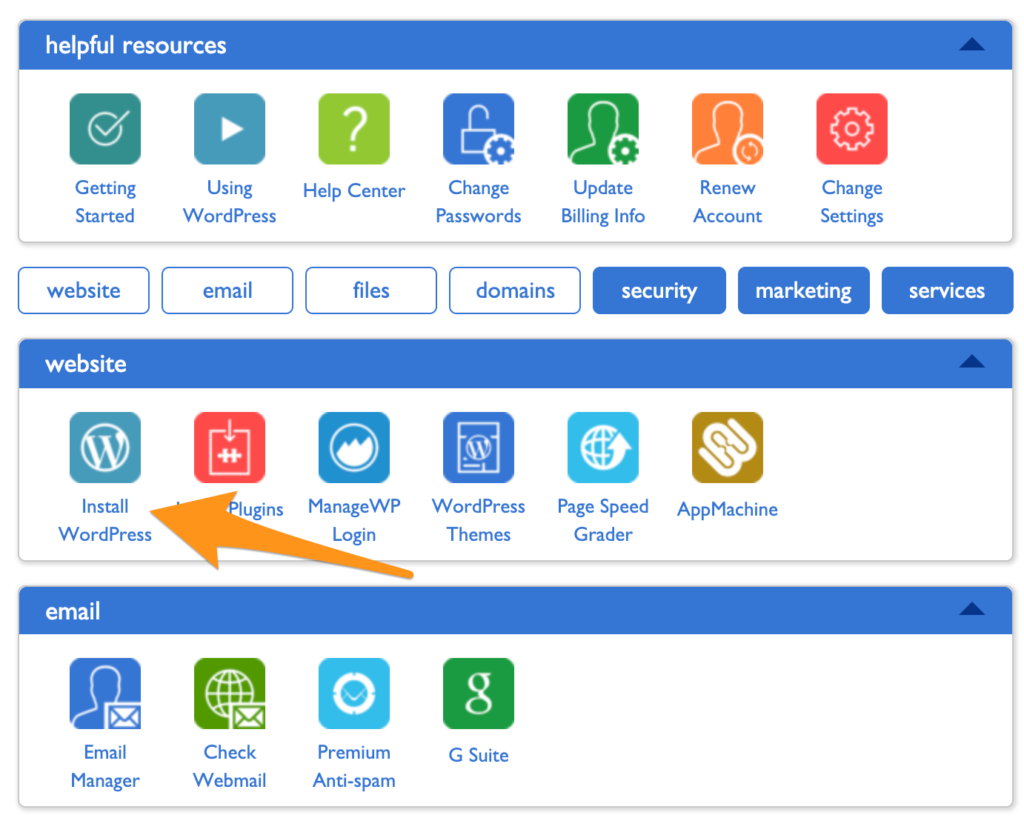
Just about every website host has a 1-click install of WordPress. Siteground, the hosting provider I recommend the most has this feature. It’s usually under a section called Tools, Website, Software, or Content Management Systems (CMS). It’ll look something like this:

Install WordPress

If you have trouble finding it, contact support at your host and they’ll be able to walk you through it.

Step 6: Point your domain to your host

Let’s do a quick recap.

  • You bought your domain using a domain registrar.
  • You signed up for a hosting plan.
  • You installed WordPress on your host.

Now you’re going to connect all that stuff together by pointing your domain to your host. Then when people go to your domain, they’ll end up on your website.

There are a few technical settings you need to apply. This involves configuring a few nameserver settings on your domain registrar for your domain. Your host will give you the correct settings; you’re looking for their nameserver settings.

If you get stuck, contact your host and they’ll give you all the info you need.

Once you have the nameserver info from your host, go into your domain registrar and configure those settings for the domain that you want to point at your site. Once you’re done, it’ll look something like this:

Create a Website Name Servers

Step 7: Install a WordPress theme

Think of WordPress as the guts of your site, it’s all the pumping that makes your site work.

WordPress uses themes to determine how your website looks. This makes it really easy to change how your site looks without having to rebuild your site from scratch. Swap out your old theme for a new one and ta-da! Your design will look completely different.

These days, I purchase all my themes from StudioPress.

Heads up, WP Engine bought StudioPress and now includes all the StudioPress themes in its hosting plans. WP Engine is more expensive but it’s perfect for serious bloggers. It’s a great way to save money on your theme if you are planning on building a large site to begin with. WP Engine is another one of our recommended hosts if you’re looking for the best. The downside is that WP Engine tends to be more expensive than other hosts. It’s probably overkill if you are just starting out, or creating your first website.

Back to themes, are there other options?

You betcha. ThemeForest has a marketplace of WordPress themes. There are literally tens of thousands of themes to pick from. They’re usually in the $30–60 price range. When looking for theme, I rank them by the most popular or the highest rating. Then I pick one I personally like.

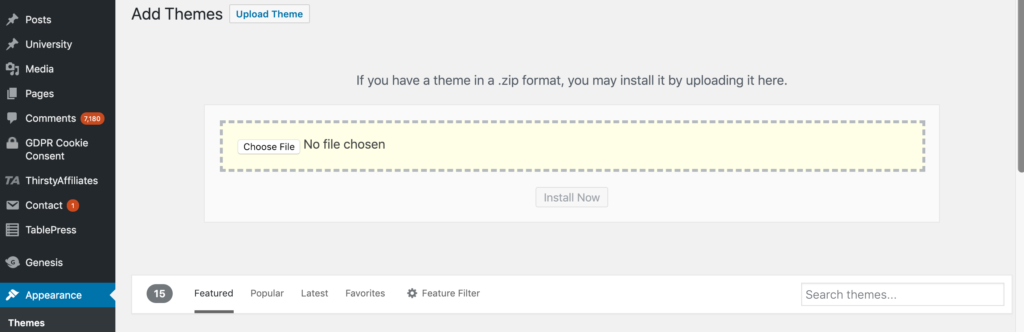
After you’ve purchased a theme, go to the WordPress Theme settings and upload your theme. The Theme settings are under Appearance in the WordPress sidebar menu. You’ll have to click through “Add new” and “Upload Theme” in order to see this option to upload:

Upload WordPress Theme

Go ahead and upload the .zip file you received when you purchased your theme.

After it’s uploaded, you’ll also have to click “activate” on the theme in WordPress to make it go live.

Step 8: Add content to your website

Now the fun part — it’s time to create the individual pages of your site.

You’ll do this within WordPress.

WordPress has two types of content: pages and posts.

Think of posts as blog posts that are published under a “blog” section of a site. If you’re not planning on having a blog, then you can skip posts entirely.

Pages are the more permanent pages on your website. Like your About or Contact Us pages. When you’re first creating your website, you want to get a batch of pages live so your site feels real.

Every website has a few standard pages you should create:

  • Homepage – Your WordPress theme usually has settings for this page.
  • Contact Page – Create a new page and install a WordPress form plugin so you can add a form to the page.
  • About page – Tell your story and why you’ve started your business.
  • Product or services pages – For the main services or products that you’re offering, it’s a good idea to create a dedicated page for each.
  • Blog – If you’re building a blog, make sure all your posts get listed here.

This list will get you started. You can always add more later.

Step 9: Continue evolving your website

At this point, you have a fully functioning site that looks great.

I’m not going to lie, there’s a lot of extra configuration you can do to your site: you can add WordPress plugins that upgrade your site, build out a blog, add an email list, grow traffic, the list is endless.

You don’t have to do any of this extra stuff — it’s all optional. It depends on your priorities and goals.

A website is an ever evolving thing. The way it looks after you first create it, won’t be how it looks a couple months later. At least that is the case if you are actively working and growing your website.

When you’re ready, these guides will walk you through the extra stuff that’s worth considering:


from Quick Sprout https://ift.tt/2Xnliua